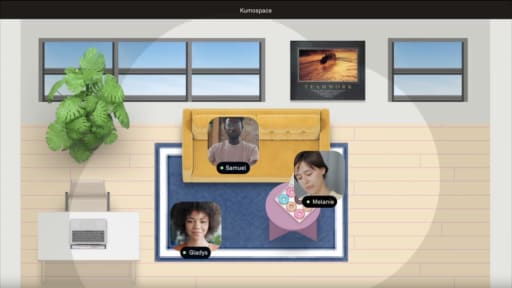
Personalizing your virtual presence has become increasingly important as remote work and online meetings continue to grow. With platforms like Kumospace and video conferencing tools, you can create custom virtual backgrounds that reflect your style, brand, or professional environment. Whether you use ready-made templates, filters, avatars, or fully customized spaces, this guide explores how to enhance your online meetings and create a more engaging virtual experience.
Key takeaways
- Enable and select the appropriate Zoom virtual background for professional or casual meetings.
- Access a wide selection of background templates and start with a free plan, allowing you to browse, customize, and download designs for your Zoom calls.
- You can customize your experience by choosing from preloaded backgrounds, uploading an image or video, or using free stock photos.
- Forgo Zoom and instead utilize Kumospace’s superior filters and avatars to enhance video presence during meetings, and customizable backgrounds and photo editing tools.
Getting started with Zoom virtual backgrounds
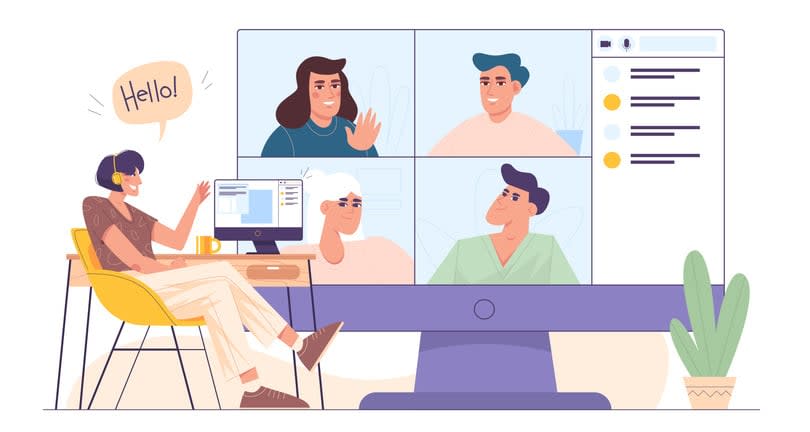
Beginning your journey into the world of virtual backgrounds involves knowing how to enable and select the right Zoom background for your meetings. We’ll start by walking through the process of selecting and enabling Zoom virtual backgrounds by following this step: click ‘choose virtual background.’ You can also browse templates and select a Zoom background template from a collection to get started.
How to enable Zoom virtual backgrounds
Enabling Zoom virtual backgrounds is straightforward. You can activate this feature at the account, group, or individual user level.
To enable Zoom virtual backgrounds, follow these steps:
- Select Settings in the controls toolbar.
- Navigate to the Background tab.
- Select the Virtual Background checkbox to enable it.
- Once enabled, users can add their own virtual backgrounds, provided the administrator allows it.
Choosing the right Zoom background
Choosing the ideal background image for your Zoom meeting takes some consideration. Zoom offers some preloaded virtual backgrounds to choose from, or you can upload your own image or video. You can easily upload photos, including your own photos, to create your own Zoom background for a personalized touch. For professional meetings, a solid image background is preferable to a blank black or white box.
If you’re searching for unique backgrounds, several websites like Unsplash, Pexels, and Pixabay offer a selection of free stock photos suitable for Zoom backgrounds. Use the search function on these stock photo sites to quickly find the perfect background by entering relevant keywords. Alternatively, you can access the Open Content Program from the J. Paul Getty Museum and the Getty Research Institute for free, downloadable images of artworks. All of these backgrounds also work in Kumospace; however, Kumospace provides the option to create your own virtual office environment for limitless creativity!
Types of Zoom backgrounds: from professional to fun
Professional backgrounds
Professional virtual backgrounds help create a polished and credible appearance during online meetings, interviews, and virtual events. Users can personalize their backgrounds with company logos, business branding, custom colors, and professional visuals that reflect their identity and create a more consistent virtual presence. Many video conferencing platforms also allow users to upload custom backgrounds, helping teams maintain a clean and professional environment regardless of where they are working.
In addition to visual customization, features like adjustable audio and video settings help improve communication quality and presentation clarity during meetings. Together, these tools help users create a more professional, engaging, and organized virtual experience for both internal collaboration and client-facing conversations.
Home office backgrounds
Home office backgrounds offer a clean and organized look for your virtual meetings, effectively hiding any clutter or distractions in your physical environment. These backgrounds can include:
- Images of home offices
- Styled bookcases
- Gallery walls
- Posters
- Other aesthetically pleasing elements
Choosing an appropriate home office background helps create a professional and comfortable setting for your virtual interactions.
Creative and fun backgrounds
For those seeking a more entertaining and personalized touch, creative and fun backgrounds are a fantastic option. Adding a personal touch, such as customizing colors, fonts, images, logos, or design elements, can make these backgrounds even more unique and reflective of your style. These backgrounds can include cartoon scenes, holiday themes, or visuals featuring popular characters.
Choosing a creative and fun background adds personality and entertainment to your virtual meetings, enhancing the experience for all participants.
Customizing your Zoom background experience

Customization is key to crafting the perfect virtual background. The process begins with the creation of a new project, where you can use the correct image dimensions and photo editing tools to design a unique and personalized Kumospace or Zoom background that elevates your virtual presence. In this section, we’ll provide essential tips and resources for customizing your virtual background experience.
You can work with various files, such as high-resolution images or vector files, throughout your project. Once your creation is complete, it's easy to share designs with others or use them directly in your meetings.
Image dimensions and aspect ratio
When crafting a custom Zoom background, it's important to use the ideal Zoom background size of 1920 x 1080 pixels, as Zoom recommends. The suggested dimensions for Zoom backgrounds are 1920 x 1080 pixels, with an aspect ratio of 16:9. Adherence to these recommendations ensures a solid display and adequate integration with the Zoom platform, and users can resize their images to meet these requirements.
Using photo editing tools
To create unique and personalized Zoom backgrounds, you can utilize various photo editing tools, such as:
These tools allow you to easily add icons, logos, or other design elements to your backgrounds, making customization simple even for beginners. They automatically adjust image dimensions, aspect ratio, and other design elements to create the perfect background for virtual meetings.
With some creativity and the right tools, your virtual presence will be captivating and engaging, avoiding the dreaded “floating head” effect.
Enhancing your Zoom meetings with filters and avatars

Another way to elevate your next virtual meeting experience is by using filters and avatars during your Kumospace or Zoom meetings.
In this section, we'll explore the various filters and avatars available on Zoom and Kumospace, providing you with the tools to create engaging and interactive virtual meetings.
Zoom filters for a professional or fun look
Zoom filters add a fun and customizable layer to virtual meetings by allowing users to personalize their on-screen appearance in real time. Whether you want to make meetings feel more casual, creative, or engaging, filters can help bring more personality into online interactions. Popular options include playful effects like halos, pizza hats, pirate eye patches, flower crowns, bunny ears, and other animated overlays that can lighten the mood during team calls, virtual events, or social gatherings.
These filters are especially popular for virtual team-building activities, online celebrations, and informal meetings where creating a more relaxed atmosphere can help encourage participation and connection. Alongside virtual backgrounds and avatars, filters give users more ways to express themselves and make remote meetings feel more interactive and less repetitive.
Kumosapce and Zoom avatars: express yourself without being on camera
For those who prefer not to be on camera, Zoom avatars provide an alternative for expressing yourself during virtual meetings. Avatars allow you to assume some forms.
Utilizing Zoom avatars allows you to maintain a sense of personal expression and engagement without the necessity of being physically on camera or using your own photo.
Kumospace also allows users to personalize their virtual presence through customizable profiles, virtual spaces, virtual offices, and interactive environments that make online collaboration feel more engaging and social. Users can choose different workspace layouts, customize rooms with themed elements, and create environments that match their team culture or event style. Features like spatial audio and interactive room design help conversations feel more natural and dynamic, encouraging stronger collaboration and more meaningful virtual interactions.
These customization options help teams create a more welcoming and immersive digital workspace, making remote meetings and social events feel less formal and more connected.
Green screen tips for optimal Zoom and Kumospace background performance

Using a green screen can significantly improve your virtual background's performance. In this section, we'll share crucial tips for setting up and troubleshooting common green screen issues, ensuring your virtual background's performance is always at its best.
Green screen setup
Setting up a green screen for optimal virtual background results requires careful attention to detail. A solid-colored screen, such as green or blue, should be placed behind you, ensuring it is the same color throughout for consistency. Proper positioning and video-conferencing lighting are essential to guarantee a clean and seamless chroma key effect.
Investing time and effort into your green screen setup yields optimal results and boosts your virtual background performance.
Troubleshooting common green screen issues
If you encounter issues with your green screen, several factors must be considered. To troubleshoot common problems, ensure your system meets the necessary requirements for utilizing a green screen, such as having a minimum of 4GB of RAM and a webcam.
Additionally, adjusting the lighting, positioning the subject correctly, using a higher-quality green screen, and ensuring consistent lighting can all contribute to improved performance and maximum resolution.
Kumospace: elevate your virtual presence
Kumospace transforms virtual meetings into interactive experiences by combining customizable workspaces with the social feel of in-person collaboration. Instead of static video calls, teams can move through digital offices, lounges, event spaces, and meeting rooms designed to feel more natural and immersive. With customizable room layouts, themed environments, and flexible workspace designs, organizations can create virtual spaces that reflect their brand, team culture, or event style while making online collaboration more engaging.
Features like spatial audio, interactive environments, and personalized workspace setups help conversations flow more organically, encouraging spontaneous discussions and stronger team connections. Whether hosting team meetings, virtual events, workshops, or social gatherings, Kumospace creates a more dynamic environment that helps remote and hybrid teams feel connected without relying on traditional video conferencing formats alone.
With Kumospace, you can personalize your virtual space by accessing a range of background solutions, from professional to fun. Kumospace allows you to customize your background with various photo editing tools and filters, ensuring your virtual presence is always captivating and engaging.
Leveraging Kumospace enables you to create a more immersive and personalized virtual experience for your online meetings and events.
Transform your backdrop for engaging online meetings
Kumospace’s virtual background solutions enable you to transform your backdrop and set the stage for more engaging online meetings. By customizing your virtual space with Kumospace’s range of background options, you can create a professional or entertaining atmosphere that enhances your virtual presence.
Kumospace ensures your online meetings are more interactive, enjoyable, and engaging for all participants.
Summary
In summary, personalizing your virtual presence is now more important than ever. Zoom virtual backgrounds, filters, and avatars provide a wealth of options for creating engaging and interactive online meetings. With the tips and resources provided in this guide, you can elevate your virtual presence, create captivating backgrounds, and enhance your online interactions. So, why not try out some of these techniques for your next virtual meeting and discover the power of personalization?
Frequently Asked Questions
For the best Zoom meeting background, stick to a neutral backdrop or a smart color palette of blues that won't look washed out.
Creating a free virtual background for Zoom is easy – open Canva, search for 'Zoom Virtual Background' and select a template, customize the design, personalize your background, and then save or share.
To download Zoom filters, join or start a meeting and select the 'Background & Filters' option from the bottom right of the screen. Explore the preloaded options available in settings, or add a custom filter by uploading a PNG or JPG image under 'Account Management -> Account Settings -> Meeting (Advanced)'.
A virtual background allows you to conceal your personal/office space and replace it with an image or video of your choosing, such as a nicely decorated office space. This provides the opportunity to add a touch of brand identity.
Yes, you can upload your own image or video for a Zoom virtual background if the administrator has enabled it.