Imagine settling in for a movie night or joining an important video call, only to hear an annoying echo coming from your speakers. Echoing audio is a common issue on TVs, computers, laptops, and phones, and it can quickly disrupt entertainment or communication.
The good news is that echo problems are often easy to fix. In this article, we’ll explore the common causes of speaker echo, how it affects sound quality, and practical troubleshooting steps to help restore clear audio. By following these solutions and testing your settings along the way, you can identify the source of the problem and improve your listening experience.
Key takeaways
- Understanding echo in speakers is essential to identifying their sources and deploying effective solutions.
- Echo reduction techniques, such as acoustic treatment, headphone/headset use, and adjustment of audio settings, can be implemented to reduce echo and improve sound quality. Recognizing variations in echo symptoms or setups can help tailor solutions more effectively. Test your speakers after each step to see results more quickly; these steps have solved echo issues for many users.
- Regular maintenance of speakers, along with system checks, is an effective way to prevent future echo issues for an optimal audio experience.
Understanding echo in speakers
Understanding the causes of echo is key to fixing audio issues. Echo can occur when sound reflects off surfaces and is picked up again by the microphone, creating feedback during calls or recordings. It may happen on computers, speakers, or even phones, and can disrupt clear communication.
Common causes include improper audio configuration, feedback loops, pass-through playback, sound processing effects, or faulty wiring. Testing your speakers and adjusting settings can help identify the source. Keeping software updated and using echo-reduction features can also improve audio quality and reduce disturbances.
Types of echoes

Different types of echoes can negatively impact sound quality and user experience, so it’s important to understand the factors that may cause them, such as reverberation and flutter echoes. The information provided here helps explain the differences between these echo types, allowing you to make more informed decisions when troubleshooting.
Reverberations occur when sound waves bounce off surfaces like walls, ceilings, and floors, especially those made of hard materials like tiles, natural stone, and rock. Sound effects, like echoes, can also play a role in the overall audio experience. Echoes can also affect the perceived depth of sound in a room, making audio seem more distant or immersive depending on the environment. If you’re unsure which type of echo is affecting your setup, you can test your audio system by playing a sound and listening for the specific characteristics of each type. Reverberation tends to sound more diffuse, while flutter echoes are sharper and more repetitive. Echoes can make it difficult to understand a spoken sentence during a call or recording, as the repeated sound may blur the clarity of the original message. Understanding which type of echo you are dealing with can lead to better results when troubleshooting and resolving audio issues.
Flutter echoes, on the other hand, arise when sound waves are trapped between two parallel surfaces, such as speakers and a wall. Combatting these echoes effectively requires a grasp of their origin and characteristics. Recognizing the difference between reverberation and flutter echoes enables you to devise targeted strategies, minimizing their impact on your audio experience for a more enjoyable listening environment.
How echo affects sound quality
If you’re experiencing echo while watching movies, listening to music, or playing video games, it can significantly affect sound quality. Echo may occur when speakers are out of phase due to incorrect wiring or when an audio delay between devices causes sound to fall out of sync.
Microphone echo can also happen when the mic picks up sound from speakers, creating a feedback loop. Adjusting microphone placement, checking audio sync settings, and testing your setup can help reduce echo and improve your overall listening experience.
Pinpointing the source of echo

Identifying the source of an echo is key to fixing audio issues. Start by testing different inputs or devices to see when the echo occurs and when it first started. Common causes include speaker placement, room acoustics, audio settings, out-of-phase speakers, or home theater configuration problems.
Once you pinpoint the source, you can apply the right solution, such as adjusting speaker placement, improving room acoustics, or updating audio settings and drivers. If the issue continues, further testing or contacting device support may be necessary.
Speaker placement
Improper speaker placement can cause sound waves to bounce off surfaces, creating echoes and affecting overall audio quality. In a family room, where multiple people gather and use the entertainment setup, speaker placement can present unique challenges for managing echoes. The impact of speaker placement on echo can vary depending on the specific configuration, room acoustics, and anything that might obstruct or reflect sound. Additionally, the audio interface between the speakers and the connected device can influence echo, as a high-quality interface can help manage input and output signals more effectively. Therefore, it is important to test different placements to achieve the best sound quality and minimize echo.
To optimize speaker placement, consider the following factors:
- The size and shape of your room
- The arrangement of furniture and other things that could affect sound
- The distance of speakers from walls and other reflective surfaces
- Avoid placing speakers too close together or too far apart
Test various speaker positions based on these considerations and observe the results. If echo issues persist, continue experimenting with placement until you achieve a clear sound without distortion. By making these adjustments, you can significantly reduce echo issues and enhance your audio experience.
Room acoustics
Room acoustics play a significant role in echo formation. Factors such as:
- Hard surfaces
- Open spaces
- Size, shape, and materials of a room
- Presence of furniture and other objects (or anything that can affect how sound travels)
- Changes in air pressure
All contribute to the room’s acoustics.
To address echo issues related to room acoustics, test different sound-absorbing materials such as acoustic foam, diffusers, and bass traps. Try adding or rearranging soft furnishings like rugs, curtains, and furniture, as each thing can impact the acoustics and help absorb sound waves to reduce echoes.
Paying attention to your room’s acoustics and making appropriate adjustments can lead to better results. Continue to make changes and test different setups until the echo is minimized for a more immersive audio experience. There’s often a moment when you realize a particular adjustment, like moving a rug or adding curtains, has significantly reduced the echo, making the improvement instantly noticeable.
Audio settings
Incorrect audio settings or faulty equipment can also contribute to echo issues. For example, altering parameters such as treble, midrange, and bass can help diminish or augment the echo effect in speakers. Some audio systems have an enhancement setting called REVERB, which, if enabled, can increase echo effects; disabling this setting may help reduce unwanted echo. It is recommended to test different audio settings and configurations, including turning certain features on or off, to identify the optimal setup for minimizing echo and achieving the best results. Make sure to select the correct default device in your sound settings, as having the wrong playback device set as the default can cause echo problems. You can access these options by navigating through the sound settings menu.
In addition to adjusting settings like treble, midrange, and bass, you may also need to examine the equalizer settings and custom EQ to reduce the echo effect in speakers. Be sure to test these adjustments and check if any settings should be turned off, such as the TV speakers, when using external audio devices. Continue to adjust and test your audio settings until the echo is resolved, as ongoing troubleshooting can lead to improved results and a better overall sound quality.
Troubleshooting echo issues
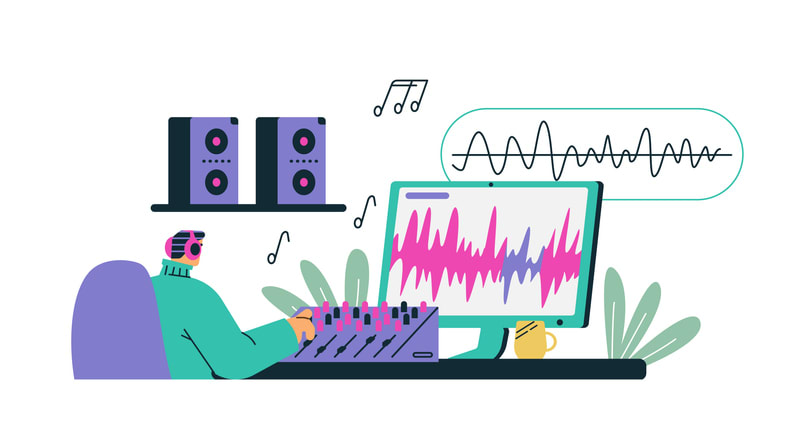
Troubleshooting echo issues involves several steps, including checking audio connections, keeping your audio drivers updated, and disabling unnecessary audio enhancements. After each step, test your speakers to see if the issue is resolved. This approach helps you understand the troubleshooting process and ensures you are making progress toward positive results. It’s important to take the time to sort through your audio devices and settings to identify the source of the echo. Instead of just applying quick fixes, investigate the root causes of echo issues to address any underlying problems effectively. The information provided here is based on expert advice and aims to offer practical solutions for echo issues that may be causing echoes.
Updating your audio drivers can resolve compatibility issues and improve overall sound quality, so make sure your drivers are always updated. Disabling audio enhancements, such as reverb or other effects, can also help improve sound quality and reduce echo issues.
If the problem continues, we encourage you to continue troubleshooting by following each step and testing the results. We hope these solutions work for you. If you have a question or need further help, feel free to reply with your experiences or ask a question below. When seeking support or repair, be prepared to explain the specific cause of the echo you have identified, as this will help personnel troubleshoot more effectively.
Checking audio connections
Providing proper audio connections and using high-quality cables can help prevent echo issues caused by faulty wiring or interference. Additionally, check for multiple connected devices, such as laptops, desktops, or mobile phones, that may be linked to the same audio setup, as these can contribute to the echo problem. After checking your connections, test your TV’s audio to see if the echo problem is resolved. Regularly inspecting the cables, plugs, and ports can lead to improved results and ensure that they are in optimal condition and free of any dirt or dust, which could result in echo problems.
Checking the audio connections also involves examining the cables for any signs of damage, such as fraying, cracking, or discoloration. If you notice any issues with your cables, consider replacing them with new, high-quality cables to ensure a reliable connection and prevent echo issues. If the problem continues, continue checking your connections and testing the audio until you achieve the desired results.
Updating audio drivers
Updating your audio drivers can resolve compatibility issues and improve overall sound quality, potentially eliminating echoes. It is important to keep your drivers updated to prevent ongoing audio problems. You can check if your audio drivers are up to date by navigating to the Device Manager in Windows and examining any devices with a yellow exclamation mark.
To update your audio drivers, follow these steps:
- Download the latest version of the drivers from the manufacturer’s website to ensure your system is updated. Make sure you select the drivers for your exact model of device.
- Install the drivers on your computer.
- After updating your drivers, test your audio by playing a sound.
- Attentively listen for any reverberations or other sound irregularities to verify that the echo has been eliminated and check the results of your troubleshooting.
- Continue to check for and install updated drivers as needed to maintain optimal audio performance.
Disabling unnecessary audio enhancements
Disabling unnecessary audio enhancements can help improve sound quality and eliminate echoes. To deactivate audio enhancements, follow these steps:
- Open the Control Panel and select the “Sound” option.
- Select the “Playback” tab.
- Choose the playback device for which you wish to deactivate audio enhancements.
- Click the “Properties” button.
- Uncheck the “Enhancements” box.
- Test your audio after disabling enhancements to check if the echo issue is resolved and to see the results.
Adjusting other audio settings can also help reduce echo issues. Here are some tips:
- Adjust the volume level
- Balance the audio between the left and right speakers
- Fine-tune the audio quality settings
- Disable unnecessary audio enhancements, then test the sound again for improved results
- Use the mute function on your speakers as a temporary way to check if the echo is coming from them
If the echo problem continues, continue adjusting enhancements and testing different settings until you achieve the desired results.
By following these steps, you can significantly enhance your audio experience and minimize echo issues.
Echo reduction techniques
There are several echo reduction techniques that you can employ to improve your audio experience, such as acoustic treatment, using headphones or headsets, and adjusting audio settings. We offer practical solutions in this article, based on expert information, to help you address echo issues. Echo reduction techniques are a popular topic among audio enthusiasts and professionals. Test different echo reduction techniques to see which ones deliver the best results for your environment.
Understanding different echo reduction techniques can help you choose the most effective solution for your situation. Whether in a home theater or video conferencing setup, applying the right methods can reduce echo and improve sound quality. Test different approaches until you achieve the best results.
Acoustic treatment
Acoustic treatment, such as installing foam panels or adding soft furnishings, can help absorb sound waves and reduce echoes in a room. This approach involves using materials like acoustic foam, diffusers, and bass traps to decrease the amount of echo in a space. Take a view of your room layout to identify the best places for acoustic treatment and maximize effectiveness.
To effectively reduce echo through acoustic treatment, consider the size and shape of your room, as well as any furniture and other objects that may be causing sound waves to reflect and create echoes. Test different acoustic treatments to determine which options work best for your specific environment. Applying the right treatment can lead to improved results, providing clearer sound and minimizing echo issues. Continue experimenting with various materials and placements until you achieve the desired reduction in echo.
Using headphones or headsets
Using headphones or headsets can eliminate echo issues by isolating audio and preventing sound from being picked up by microphones. Headphones and headsets achieve sound isolation by forming a physical barrier between the sound source and the microphone, thereby preventing sound from being detected by the microphone.
To achieve the best results, test different headphones or headsets to find the most effective option for your needs. The right device can significantly improve your audio experience and help eliminate echo. If you continue to experience issues, try testing additional devices until you achieve the desired results.
In addition to providing sound isolation, headphones and headsets can also enhance your audio experience by delivering high-quality sound directly to your ears. When selecting headphones or headsets, consider factors such as comfort, sound quality, and noise cancellation to ensure the best audio experience and effective echo elimination. You can also share a link to an audio sample before and after using headphones to compare the difference and demonstrate the reduction of echo.
Adjusting audio settings
Adjusting audio settings, such as microphone sensitivity or speaker volume, can help minimize echo issues during video conferencing or other audio-intensive activities. To do this, access your system preferences and follow these steps:
- Right-click on the audio device from the “Playback” or “Recording” tab.
- Select “Properties”.
- Head over to the “Enhancements” tab.
- Check the “Disable all enhancements” box.
- Click “OK”.
To improve results, test different audio settings and configurations. Some settings may need to be turned on or off, such as disabling enhancements or turning off TV speakers, to see which adjustments are most effective. Continue to adjust and test your settings until the echo is resolved.
Fine-tuning your sound settings can effectively address echo issues and enhance the overall sound quality of your audio experience. Experiment with different audio settings to identify the optimal configuration for minimizing echo and achieving the best audio experience for your specific situation.
Preventing future echo issues

To prevent future echo issues and ensure optimal audio quality, it is important to perform regular speaker maintenance and system checks. The information provided here is based on expert advice to help you understand and address potential problems before they escalate into significant issues that negatively impact your audio output experience.
Implementing preventive measures can help you maintain a high-quality audio environment free of echo issues. Here are some steps you can take:
- Keep your drivers and software updated regularly to ensure compatibility with your audio equipment and prevent new issues.
- Check your audio settings and adjust the microphone sensitivity to minimize background noise and echo.
- Test your audio setup frequently to identify and resolve any software or hardware issues that may be causing echo.
- Perform frequent checks of your audio setup to catch potential problems early and maintain optimal performance.
- Continue performing regular maintenance and preventive steps to achieve the best results and avoid recurring problems.
For individuals with hearing loss, using hearing aids can help maintain clear sound and prevent echo issues by improving sound perception and reducing the impact of echoing sound.
By staying proactive and making sure you understand these preventive measures, you can ensure a consistently excellent audio experience and avoid the frustration of future echo problems.
Thanks for taking the time to learn about preventing echo issues.
Speaker maintenance
Regularly cleaning and inspecting speakers for damage can help maintain their performance and prevent echo issues caused by faulty equipment. After performing maintenance, test your speakers to ensure any issues have been resolved and to verify the results of your efforts. Dusting and cleaning the speakers and their surroundings can preserve their performance and avoid echo issues caused by dust and dirt.
Inspecting and cleaning speaker cables, assessing the voice coil for any damage, and ensuring the speakers are fully charged and stored when not in use can also contribute to maintaining optimal speaker performance. Regular speaker maintenance and ongoing testing can lead to improved results and prevent potential echo issues, ensuring an uninterrupted, high-quality audio experience. Continue to maintain your speakers regularly for the best long-term performance.
Regular system checks
Regular system checks and updates are key to preventing echo issues and maintaining clear audio. Keeping drivers and firmware up to date, checking audio settings, running system diagnostics, and applying patches can help identify and resolve problems before they affect your listening experience.
By understanding echo causes, pinpointing its source, and using techniques like acoustic treatment, headphones, and optimized settings, you can significantly improve sound quality. Whether for movies, music, or video calls, staying proactive ensures a consistently clean and enjoyable audio environment.
Summary
Echo in the computer or speaker audio is a common problem that can disrupt calls, music, and videos, but it is usually easy to fix. Echo often occurs when sound reflects off surfaces, microphones pick up speaker output, or audio settings and hardware are misconfigured. Identifying the source, such as speaker placement, room acoustics, wiring, or software settings, is the first step to resolving the issue.
Simple solutions include adjusting speaker placement, improving room acoustics with soft materials, updating audio drivers, checking cables, and disabling unnecessary audio enhancements. Using headphones or headsets can also help prevent feedback during calls. Regular maintenance, testing audio settings, and keeping systems updated can prevent future echo problems and ensure clearer sound, especially during video conferencing and virtual meetings.
Frequently asked questions
Lower the volume of your stereo and reduce any background noise. Adjust the Echo Canceller/Noise Canceller mode on your phone, if available, and go to the Control Panel to access the sound settings. Make sure the Listen to this Device box in the Properties of the Microphone is unchecked.
Echo is the reflection of sound that arrives at the listener with a delay after the direct sound. It is created by sound bouncing off reflective surfaces and can be reduced by changing hardware technology or moving the microphone away from the reflective surface.
An echo is caused when a sound wave reflects off a surface and the sound is repeated back. This occurs when the sound wave comes into contact with a boundary, such as a flat, hard surface like a wall or a body of water.
Incorrectly placed speakers can cause sound waves to bounce off surfaces, resulting in echoes and impacting the overall audio quality.
To reduce echo in a room with poor acoustics, try acoustic treatment techniques such as foam panels, diffusers, or soft furnishings. These treatments can help absorb sound waves and reduce reverberation, making the room sound more balanced and natural.